
User guides
Two Factor Authentication (TFA) User Guide
Start by taking a look at TFA QuickStart guide: Micor TFA Quick Reference Guide (PDF)
A step-by-step guide to help set up and use TFA: Micor TFA User Guide (PDF)
New Starter Guide
Start here if you're new to Micor. The Micor New Starter Guide (PDF) provides essential information to help you get familiar with the platform.
Instructional videos
Introduction - Look and feel
Overall look and feel
Learn how the new Micor platform retains the familiar design, content, navigation, and core functionality while introducing improvements to accessibility and usability.
Search and filtering
Learn how to use search and filtering features to quickly find relevant market access requirements and information within Micor.
Navigation
Explore the Micor platform’s navigation features and learn how to efficiently move between commodity, country, and case information.
Updating bookmarks
Learn which existing bookmarks will continue to work after migration and how to recreate bookmarks for individual country and case pages.
Setting up Two Factor Authentication (TFA)
Two factor authentication (TFA) setup overview
Get an overview of the TFA enrolment process and learn what is required to access password-protected content on the new Micor platform.
Reset password
Learn how to reset your Micor password as part of the TFA enrolment and account access process.
Setting Up Email Code Verification Method For TFA
Follow the steps to configure email code verification to securely verify your identity when accessing Micor
Setting Up Mobile Authenticator Application For TFA
Follow the steps to configure mobile authenticator application to securely verify your identity when accessing Micor.
Using TFA Codes To Login To Micor
Learn how to use TFA verification codes to successfully sign in to password-protected Micor content.
Updating TFA Settings
Learn how to manage and update your TFA settings, including changing your verification method and account preferences.
Micor platform features
Suggest a fix
Learn how to use the Suggest a Fix feature to report content that may require correction or clarification directly to the Micor team.
Newsletter subscription
Learn how to subscribe to the Micor update service and receive a weekly summary of content updates delivered every Monday.
General
Micor news
From time to time we'll have some news to share with you. It might be to let you know that Micor will be unavailable for maintenance, or to let you know about an enhancement to Micor.
Active News items appear at the top of the page in a bright yellow banner.
Sometimes there will be a link to a longer story, which will be linked.
News items will stick around until you close them by selecting the close/exit icon (X). Sometimes we'll turn them off automatically, like when the maintenance period is over. You can always find the news item again by visiting News. There's a link to the News page in the footer of every Micor page.
Refer to Micor update service (below) | Micor news items
Printing or saving Micor information
Micor reformats importing country requirements so that they can be printed or saved to a PDF file.
To print Micor information, use your browser's print function. This is usually found in the File menu or by typing CTRL + P (CMD + P on a Mac).
To save Micor content as a PDF file, use your browser's print function and choose to save a PDF file. For further information consult your browser's help information.
Updates and alerts
The following are different ways to keep on top of changes to importing country requirements in Micor.
Micor update service - subscribe for updates
Users of Micor can subscribe to the Micor update service for a commodity (or commodities) of interest. This service provides subscribers with a weekly email listing any updates made to Micor in the previous week. It may also provide any other communications regarding Micor, including alerts.
Look for latest updates
As the Department updates importing country requirements, we record the update in the "Latest updates" section on that page.
You can access the update information in two ways:
- For a specific page: there is a Latest updates expandable section at the bottom of every page. Open this section to access all the changes that have been made to that page. The most recent update is listed first.
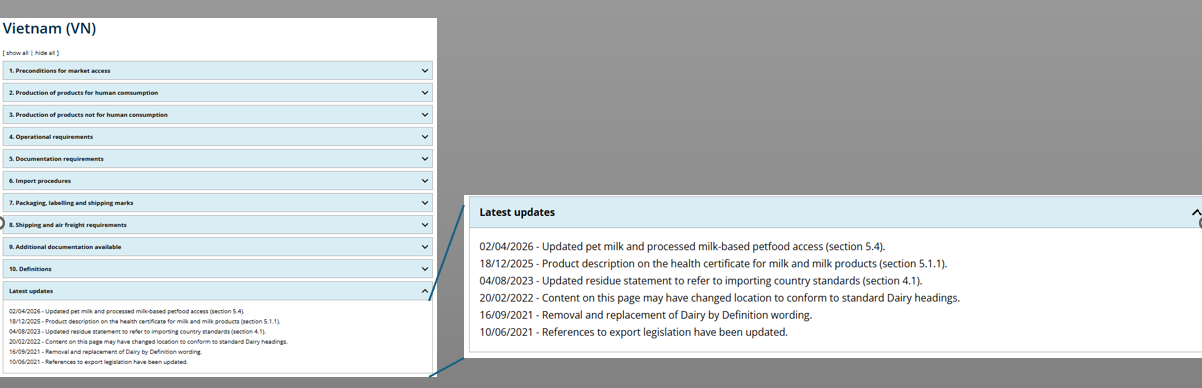
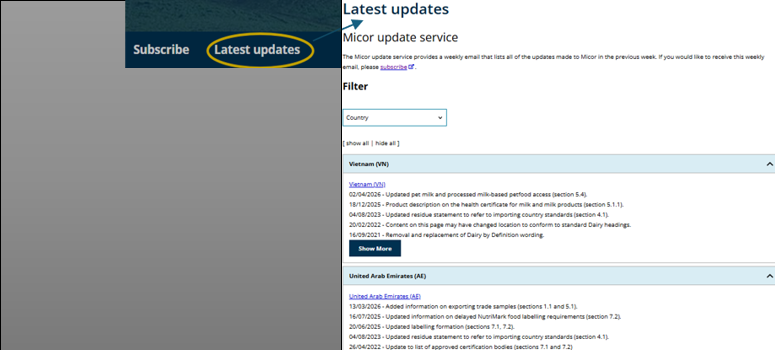
- For a list of updates made to any page in a commodity: Select the Latest updates link, located at the top of the commodity page. The pages are listed in chronological order, with the most recent listed first.
Turn on "show changes"
You can view what has been added to and deleted from the current published version of a Micor entry (except Micor Plant) and the previous version.
If there are changes to show, the show/hide changes toggle (will appear to the right of the country name) will be blue. If not, it will be greyed out.
When you turn on the show/hide changes, words that have been added will be shaded in green. Words that have been deleted will be shown as strikethrough and highlighted in red.
You can move to the next or previous change with the left and right arrow keys on your keyboard, or by tapping on the arrows on the show/hide changes panel.
Searching Micor
Micor sitewide search and commodity specific search
The text search bar located in the top-right corner of the Micor homepage allows users to search across all commodities, in one place.

Sitewide search on the Micor homepage
Each commodity also has it's own text search bar, located in the top-right corner of pages within a commodity. If you use the search bar in Dairy, you will receive only Dairy results. If you use the search bar on the homepage, you will receive results from all commodities.

Commodity specific search on the Dairy homepage
Content you do not have access to on your Micor user account will not be displayed in search results (e.g. Meat results will not display unless you have access to meat).
Log in to your account to ensure that you receive all the available results when using the sitewide search on Micor.
If your search yields no results, you may need to try more general search terms, reduce the number of keywords or apply for a login to access more results from meat, plants and live animals.
Refer to Using the search bar for Boolean operators, wildcard and phrase search tips.
Using the search bar
Each commodity has it's own text search bar, located in the top-right corner of the page; that is, if you use the search bar in Dairy, you will receive only Dairy results.
Boolean operators
Boolean operators are used to narrow or expand the search results. Boolean operators must be in UPPERCASE:
- AND – Use AND to narrow your search results. The search results include all of the free text expressions.
- NOT – Use NOT to narrow your search results. The search results don't include the specified free text expressions or property restrictions.
- OR – Use OR to expand your search to include more terms. The search results include one or more of the specified free text expressions or property restrictions.
Examples
honey OR apiculture
will find pages that include either honey OR apiculture, or both
oats NOT sowing
will find pages that include the word oats but do not include the word sowing
hatching AND "day-old chickens"
will find pages that include the word hatching AND the phrase "day-old chickens"
endorsement AND 1113
will find pages that include the word endorsement and the number 1113
Wildcard
A wildcard substitutes for one or more characters.
Use a wildcard * if you want to be sure to get variations of the term you are looking for or if you are not sure about the spelling:
Example
produc*
to search for all pages containing words starting with produc; that is, produce, product, products, productive, production.
Double quotes for phrases
Use double quotes "" to find exact phrases if you are sure about the phrase.
Examples
"cheese products"
to search for all items containing "cheese products"
"whey powder"
to search for all items containing "whey powder"
Using the commodity landing pages
Meat
For Micor meat there is a single page for each country that contains that country's known importing requirements.
Access is restricted to Micor meat. Exporters and affiliated industries can apply for a login.
Micor meat allows you to refine a search by country and whether Australian exporters have access for various edible or inedible commodities.
- If you know the country you want to export to, choose it from the Country filter.
- If you would like to access a list of countries with market access for an edible commodity, choose it from the Edible filter (results are based on the content in section 1.3).
- If you would like to access the countries with market access for an inedible commodity, choose it from the Inedible filter (results are based on the content in section 1.4).
- If you combine these filters, a list of countries that meet all of the selected criteria will be displayed.
Select the country link in the results section to go to the country page.
The cross (x) at the end of the selected filters can be used to clear filters.
Searches can also be conducted by entering key words such as endorsement number, product name or country name into the search bar at the top of the page. Refer to Using the search bar.
Dairy
For Micor dairy there is a single page for each country that contains that country's known importing requirements.
- Choose the country from the country filter.
- Select the country in the results section to go to the country page.
The cross (x) at the end of the selected filters can be used to clear filters.
Searches can also be conducted by entering key words such as endorsement number, product name or country name into the search bar at the top of the page. Refer to Using the search bar.
Plants
Micor plants contains all known importing country requirements and publishes information in individual cases for each specific country and commodity. These requirements are based on import permits or instruments in writing issued by the importing National Plant Protection Organisation (NPPO).
You can refine a search by country, group, end use and scientific name using the search filters. Searches can be conducted at any level, for example country and group only, country and end use only.
To find the importing country requirements of a commodity for a specific country:
- Choose the country from the Country filter.
- Choose the commodity from the Group filter.
- Choose the end use from the End use filter if it helps to narrow down your search.
- Choose the scientific name from the Scientific name filter if it helps to narrow down your search.
- Select the case link in the results section. The results section sits below the filters.
If you only choose a country from the Country filter, you can follow the country link in the results section to view all the available cases for that country.
Searches can also be conducted by entering key words such as endorsement number, common name or the country into the search bar at the top of the page. Refer to Using the search bar.
Access to work plan and protocol documents
Micor plants has a documents section located at the bottom of the Micor Plants page, that contains documents relevant to plant exports including protocols and work plans. Protocol documents are bilateral agreements between the Department and the importing country NPPO. This section is restricted, users are required to apply for access with Plant Exports to view these documents.
For access to be granted to Work plans and Protocol documents users must:
- be involved within export pathway, be an affiliated industry members or be a part of an export business.
- be located in Australia and hold an Australian Business Number (ABN).
What do I do if there is no case for my product on Micor Plants?
Where there are no import conditions for your export, the exporter must obtain an official notification in writing from the NPPO of the importing country in form of an import permit or instrument in writing. This document must be emailed to Micor Plants for a case to be created prior to an inspection or export occurring.
What do I do if the conditions listed on my import permit are different to the Micor case?
Import permits or instruments in writing that differ to the information in Micor Plants must be emailed to Micor Plants, for a case to be updated prior to any inspection or export occurring.
How do I get assistance interpreting conditions listed in Micor Plants?
If you have questions relating to conditions published in Micor Plants, you can contact the Micor Plants team.
Fish
For Micor fish there is a single page for each country that contains that country's known importing requirements.
Micor Fish allows you to refine a search by country and whether Australian exporters have access for various types of seafood and non-prescribed goods.
- If you know the country you want to export to, choose it from the country filter.
- If you would like to access a list of countries with market access for commodities for human consumption, choose it from the Access for type of seafood filter (results are based on the content in section 1.2).
- If you would like to access the countries with market access for non-prescribed goods, choose it from the Access for non-prescribed goods filter (results are based on the content in section 1.3).
- Combining filters gives a list of countries that meet each of the selected criteria.
Select the country in the results section to go to the country page.
The cross (x) at the end of the selected filters can be used to clear filters.
Searches can also be conducted by entering key words such as endorsement number, product name or country name into the search bar at the top of the page. Refer to Using the search bar.
Live animals
For Micor live animals there is a single page each specific commodity (case). A country page contains all the cases for that country grouped by livestock, non-livestock and reproductive material.
Access is restricted to livestock cases in Micor live animals. Exporters and affiliated industries can apply for a login.
Micor live animals allows you to refine a search by country, category, group and species.
- If you know the country you want to export to, choose it from the country filter
- Use the category, group and species filters to further refine your selection
- If you combine these filters, a list of countries that meet all of the selected criteria will be displayed.
- Select a specific case in the results section to go directly to that case
The cross (x) at the end of the selected filters can be used to clear filters.
Searches can also be conducted by entering key words such as product name or country name into the search bar at the top of the page. Refer to Using the search bar.
Eggs
For Micor eggs there is a single page for each country that contains that country's known importing requirements.
- Choose the country from the Country filter
- Select the country in the results section to go to the country page.
The cross (x) at the end of the selected filters can be used to clear filters.
Searches can also be conducted by entering key words such as endorsement number, product name or country name into the search bar at the top of the page. Refer to Using the search bar.
Non-prescribed goods
For Micor non-prescribed goods there is a single page for each specific product (case). A country page contains all the cases for that country grouped by product.
The Micor non-prescribed goods landing page allows you to refine a search by country, category or product.
- If you know the country you want to export to, choose it from the Country filter
- Use the category and product filters to further refine your search
- If you combine these filters, a list of cases that meet all of the selected criteria will be displayed
The cross (x) at the end of the selected filters can be used to clear filters.
Searches can also be conducted by entering key words such as endorsement number, product name or country name into the search bar at the top of the page. Refer to Using the search bar.
Organics
For Micor organics there is a single page for each country that contains that country's known importing requirements.
- Choose the country from the Country filter
- Select the country link in the results section to go to the country page.
The cross (x) at the end of the selected filters can be used to clear filters.
Searches can also be conducted by entering key words such as endorsement number, product name or country name into the search bar at the top of the page. Refer to Using the search bar.
Help us improve Micor
Suggest a fix to Micor content
Wrong or missing information in a Micor entry
Use the Suggest a fix tool to let us know what you think is wrong in a Micor entry.
- Select the specific text you want to comment on.
- Select the green icon (a pencil) that appears next to your selection. The text you selected will be automatically added to the suggest-a-fix form.
- Tell us what you think is wrong or missing.
- Add your email address so we can get back to you.
- Complete the robot test and select Submit.
If you find something that you think is wrong in a Micor entry, please let us know.
The Micor team will review your feedback and get back to you as soon as we can.

Selected text on Micor with the green icon (a pencil) used to access the suggest a fix form
General feedback about Micor
Use the Was this page helpful? buttons at the foot of every page to send us feedback about Micor.
- Select No
- Tell us what's wrong and select Submit
or
- Select Yes
- Tell us what you like and select Submit
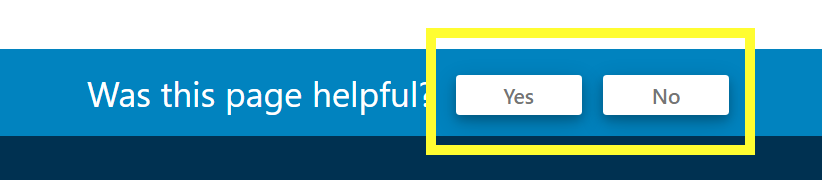
General feedback form at the footer of a Micor page with Yes and No options